To configure pointer settings on your gaming mouse:
-
Open SetPoint.
Start > All Programs > Logitech > G9x, G500 and G700 Gaming Mice > Device Settings
-
Select your mouse from the device list.
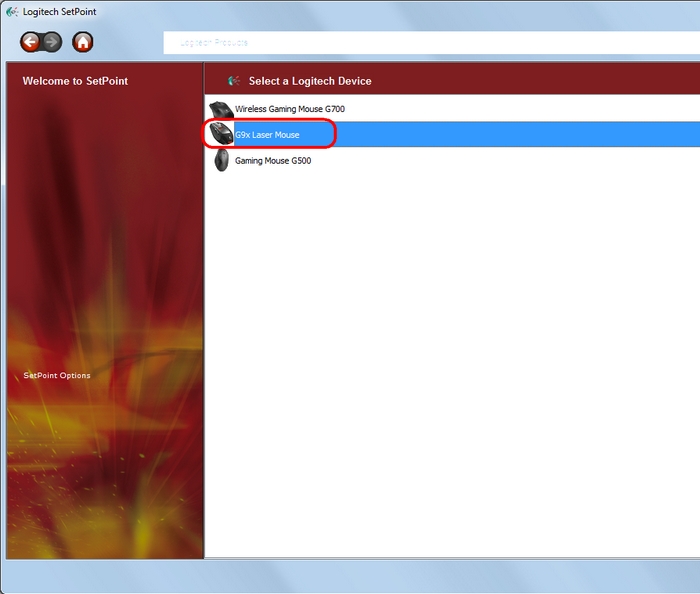
-
Select the profile you want to customize using the Profile drop-down menu (see answer 26938 for more information on profiles).
-
Click Pointer on the left side of the window.
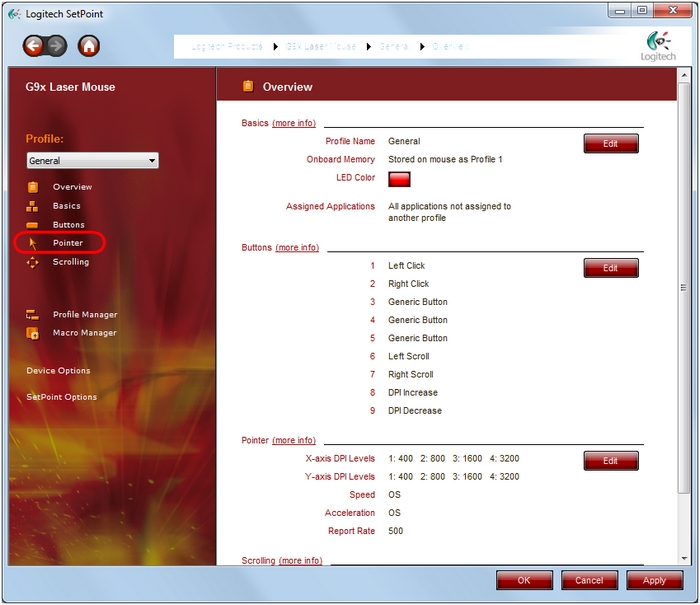
The pointer window enables you to configure:
- DPI Sensitivity Levels: You can select the total number of DPI levels available (up to 5 per axis), and configure the DPI speed of each level.
- Use OS native drivers for pointer speed and acceleration: Select this setting if you prefer the feel and behavior of the Windows native drivers.
- Enable angle snapping: Use this option to help you draw flatter and more level horizontal and vertical lines.
- Speed and Acceleration: You can set these to give your mouse different speed behaviors. For optimum gaming performance, use speed at 5 and acceleration at 0 or 1.
- Report Rate: This setting determines how frequently the mouse reports to the system. 500 reports/sec (2ms) is optimal for most gaming situations. 1000 reports/sec (1ms) offers the fastest mouse response, but also the highest impact to system resources.
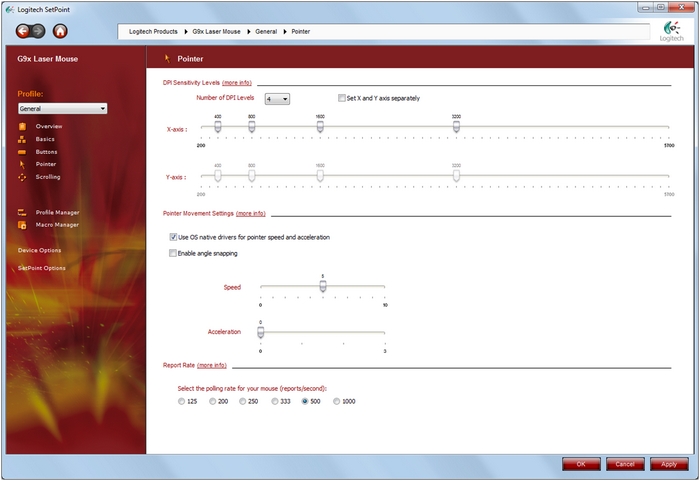
- Click Apply to save your settings, and OK when done.
Important Notice: The Firmware Update Tool is no longer supported or maintained by Logitech. We highly recommend using Logi Options+ for your supported Logitech devices. We are here to assist you during this transition.
Important Notice: The Logitech Preference Manager is no longer supported or maintained by Logitech. We highly recommend using Logi Options+ for your supported Logitech devices. We are here to assist you during this transition.
Important Notice: The Logitech Control Center is no longer supported or maintained by Logitech. We highly recommend using Logi Options+ for your supported Logitech devices. We are here to assist you during this transition.
Important Notice: The Logitech Connection Utility is no longer supported or maintained by Logitech. We highly recommend using Logi Options+ for your supported Logitech devices. We are here to assist you during this transition.
Important Notice: The Unifying Software is no longer supported or maintained by Logitech. We highly recommend using Logi Options+ for your supported Logitech devices. We are here to assist you during this transition.
Important Notice: The SetPoint software is no longer supported or maintained by Logitech. We highly recommend using Logi Options+ for your supported Logitech devices. We are here to assist you during this transition.
Frequently Asked Questions
There are no products available for this section
There are no Downloads for this Product
There are no Downloads for this Version
Compatible Product
