You can configure the function keys on an all-in-one keyboard using Logitech Options software.
NOTE: If you don't already have Logitech Options installed, you can download it. See Answer 360023421613 for instructions.
Using Logitech Options, you can:
Configure function keys
-
With your all-in-one keyboard connected, launch the Logitech Options software.
-
Click the Keyboard tab at the top of the Logitech Options window.
-
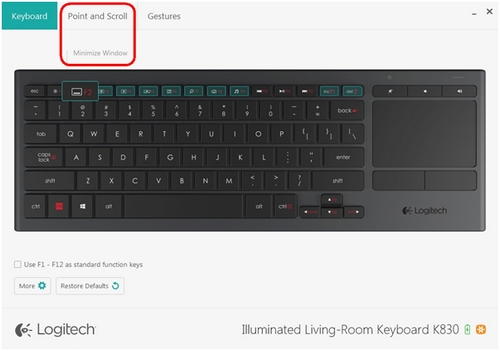
Hover the mouse pointer over a highlighted key to display its current function assignment.
NOTE: In the example below, the F2 key is assigned to Minimize Window.
-
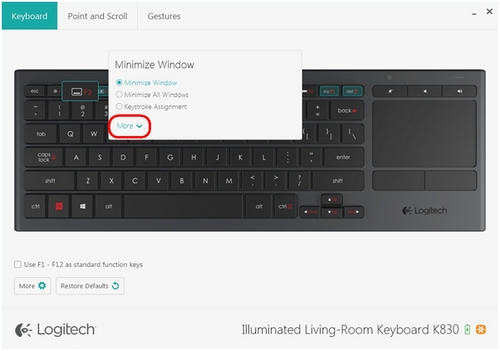
To assign a new key function, click any highlighted key to open the drop-down menu.
-
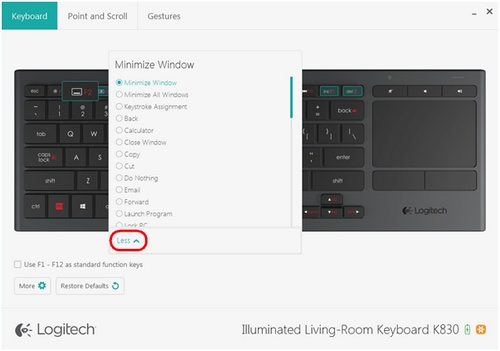
Select More to expand the list of all available key functions. Scroll up or down the list as needed.
-
To collapse the list, select Less.
-
Click the desired function to select it. It will take effect immediately.
-
To continue configuring other highlighted keys, click any empty space in the center of the Logitech Options window.
Set F1-F12 as standard function keys
-
In the lower left of the Logitech Options window, click Use F1 – F12 as standard function keys to enable this option.
NOTE: When standard function keys are enabled, the F-keys perform standard function commands, and not enhanced function commands (ex. media playback, maximize/minimize window, etc.)
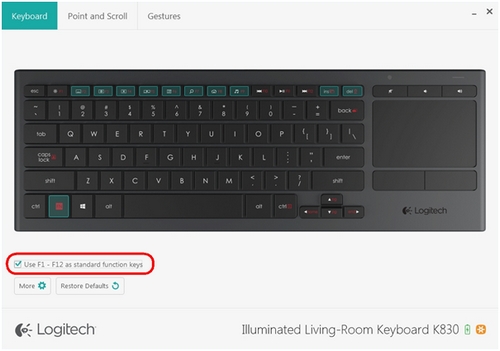
NOTE: The standard function key option is disabled by default.
Restore default settings
-
Click Restore Defaults in the lower left to reset all device customizations to their default settings.
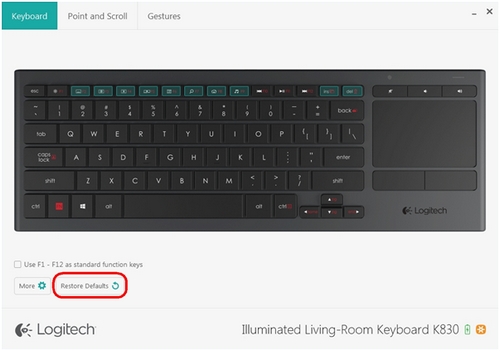
NOTE: The Restore Defaults button is visible in all tabs within Logitech Options.
-
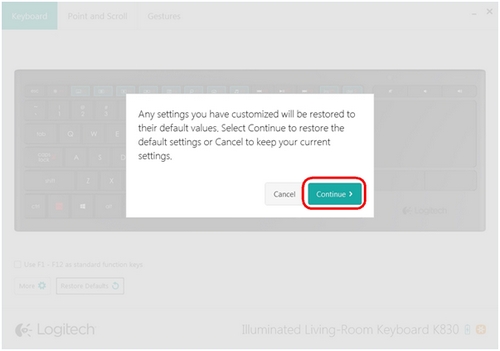
Click Continue to confirm.
Important Notice: The Firmware Update Tool is no longer supported or maintained by Logitech. We highly recommend using Logi Options+ for your supported Logitech devices. We are here to assist you during this transition.
Important Notice: The Logitech Preference Manager is no longer supported or maintained by Logitech. We highly recommend using Logi Options+ for your supported Logitech devices. We are here to assist you during this transition.
Important Notice: The Logitech Control Center is no longer supported or maintained by Logitech. We highly recommend using Logi Options+ for your supported Logitech devices. We are here to assist you during this transition.
Important Notice: The Logitech Connection Utility is no longer supported or maintained by Logitech. We highly recommend using Logi Options+ for your supported Logitech devices. We are here to assist you during this transition.
Important Notice: The Unifying Software is no longer supported or maintained by Logitech. We highly recommend using Logi Options+ for your supported Logitech devices. We are here to assist you during this transition.
Important Notice: The SetPoint software is no longer supported or maintained by Logitech. We highly recommend using Logi Options+ for your supported Logitech devices. We are here to assist you during this transition.
Frequently Asked Questions
There are no products available for this section
There are no Downloads for this Product
There are no Downloads for this Version
Compatible Product
